Forecast
Overview
Forecast is turbulence prediction data issued by SkyPath. It is issued for up to 24 hours forecast. Forecast Flow orchestrates the retrieval and management of forecast predictions. This page provides a detailed understanding of the flow architecture and how to use it.
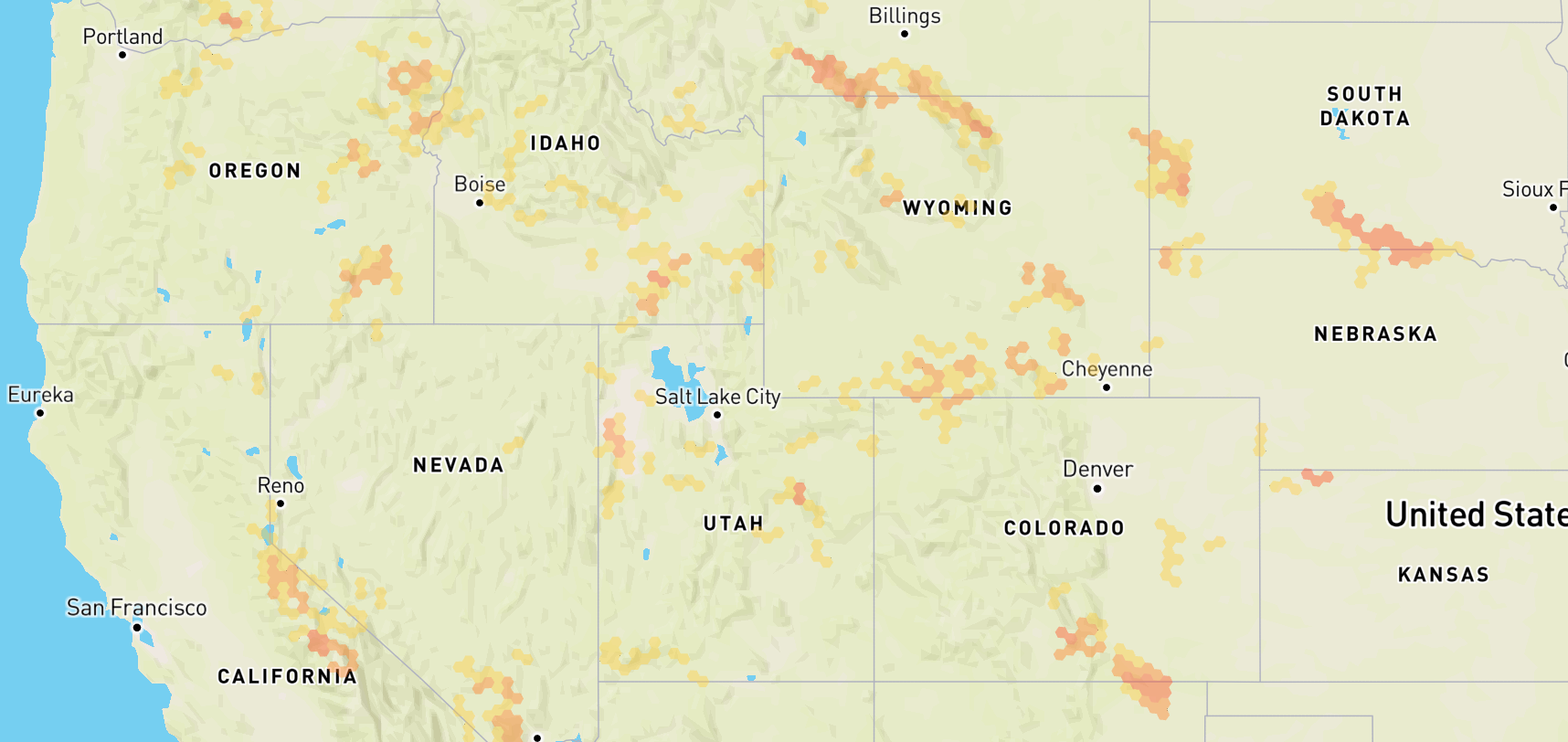
Startup and Initialization
Upon instantiation, Forecast Flow sets up initial configurations and prepares the system for data fetching. The flow is created without arguments; the map area polygon is passed later with updateConfig(). It immediately subscribes to internal events to handle periodic updates and user-triggered fetches.
To create Forecast Flow call createForecastFlow factory method from sdk object.
See example:
// Initialize SDK
const sdk = await createSkyPathSDK(...);

// Create Forecast Flow (only if enabled for this user)
const forecastFlow = sdk.IS_FORECAST_ENABLED ? sdk.createForecastFlow() : null;
Check sdk.IS_FORECAST_ENABLED before creating the flow. See Feature flags for details.
Lifecycle Management
- Start: Allocates resources, setting up intervals and listeners for data updates;
- Update: Triggers an update of the data, fetching new data for relevant map area polygon;
- Stop: Temporarily stops all operations, keeps resources, and pauses updates / intervals;
- Terminate: Completely stops all operations, releases resources, and removes all listeners, effectively shutting down the flow;
The diagram shows the intended order of calls. The flow does not enforce it and does not throw on other orders. After terminate(), create a new flow instead of calling start() again.
Data Retrieval Process
Under the hood, forecast flow abstracts the complexity for communication with SkyPath platform API in efficient way handling necessary data transformations, mappings and access management:
- Data fetching: The H3 hexagons inside the configured polygon are checked, and new data is fetched for those that need updating. It handles concurrency and ensures that data fetching for the same hexagon is not duplicated;
- Data Merging: Newly loaded hexagons are added to the stored set; for a hexagon that is fetched again, the new data replaces the stored one;
- Data invalidation: Once new data is generated on the back-end side, the old data is invalidated and erased with the fresh;
Data update process is triggered automatically by the flow, but can also be triggered manually by the user by calling updateConfig() method.
Automatic updates are triggered periodically every 5 minutes.
Once data update is triggered and successfully completed, the flow emits data update event, which can be listened to by the user to update the UI or perform any other necessary actions. This can be done by subscribing to the event using onData method that takes a callback function as an argument and returns ForecastData object for current and previous data:
forecastFlow.onData((data, previousData) => {
  // You may get data in different formats
  const rawReportsData = data.toRawObject();                   // Raw reports
  const hexagonsArray = data.toHexagonsArray();                // Hexagons array
  const geoJsonFeatureCollection = data.toFeatureCollection(); // GeoJSON Feature Collection

  // ...use the data to update the UI...
})
If an error occurs during the update process, the flow emits an error event, which can be listened to by the user to handle the error. This can be done by subscribing to the event using onError method that takes a callback function as an argument and returns an Error object:
forecastFlow.onError((error) => {
  // Handle the error
})
Tracking the processing status of the flow can be done by subscribing to the onIsProcessingChange event. This event is emitted when the flow starts or stops processing data. The event returns a boolean value indicating the processing status:
forecastFlow.onIsProcessingChange((isProcessing) => {
  // Handle the processing status
})
onData, onError and onIsProcessingChange throw a ValidationError if the callback is not a function.
Configuration
To update the flow with new settings, call updateConfig method:
forecastFlow.updateConfig(config)
The updateConfig(config: Config) method takes the following arguments where the polygon is a custom area on a world map and settings are the configuration for the flow:
| Property | Description | Type | Default |
|---|---|---|---|
| polygon | Map viewport rectangle or a route corridor polygon | Polygon | null |
| isCorridorMode | Flag to indicate if the polygon is a route corridor or not | boolean | false |
| forecast | forecast in hours | Forecast | 0 |
| maxAltitude | Maximum altitude to load data for | Altitude | 52 |
| minAltitude | Minimum altitude to load data for | Altitude | 0 |
| minSeverity | Minimum severity level to load data from | Severity | 0 |
While the flow is running, the update starts 0.5 seconds after the last updateConfig() call, so several quick calls lead to one update.
Invalid values, including null, are not applied. The flow reports them as a FlowError: to the onError callback if one is set, otherwise updateConfig() throws it.
Once update is triggered and successfully completed, the flow emits data update event, which can be listened to by the user to update the UI or perform any other necessary actions. This can be done by subscribing to the event using onData method that takes a callback function as an argument and returns ForecastData data object:
forecastFlow.onData((data) => {
  // Use the data to update the UI
})
To put the data on a map, use data.toHexagonsArray() or data.toFeatureCollection() shown above. For the geographic helpers, see Utilities.
Examples
Basic usage
// Import the SDK
import createSkyPathSDK from "@skypath-io/web-sdk";

// Initialize SDK
const sdk = await createSkyPathSDK({
  // Your auth parameters here
});

// Create Forecast Flow
const forecastFlow = sdk.createForecastFlow()

// Subscribe to the data update event
forecastFlow.onData((data) => {
  // Use the data to update the UI
})

// Subscribe to the error event
forecastFlow.onError((error) => {
  // Handle the error
})

// Subscribe to the processing status event
forecastFlow.onIsProcessingChange((isProcessing) => {
  // Handle the processing status
})

// Start the flow when needed
forecastFlow.start()

// Later in the code update the polygon
forecastFlow.updateConfig({
  polygon: [
    [
      -143.6279359720371,
      54.91893678195086
    ],
    [
      -143.6279359720371,
      20.948470420620993
    ],
    [
      -56.37206402796207,
      20.948470420620993
    ],
    [
      -56.37206402796207,
      54.91893678195086
    ],
    [
      -143.6279359720371,
      54.91893678195086
    ]
  ],
  forecast: 0,
  maxAltitude: 35,
  minAltitude: 35,
  minSeverity: 2,
})

// Later in the code terminate the flow when jobs are done
forecastFlow.terminate()
Advanced usage
For advanced examples check the React Demo Application.