Observations
Overview
Observations Flow orchestrates the retrieval and management of live SkyPath turbulence observations. This page provides a detailed understanding of the flow architecture and how to use it.
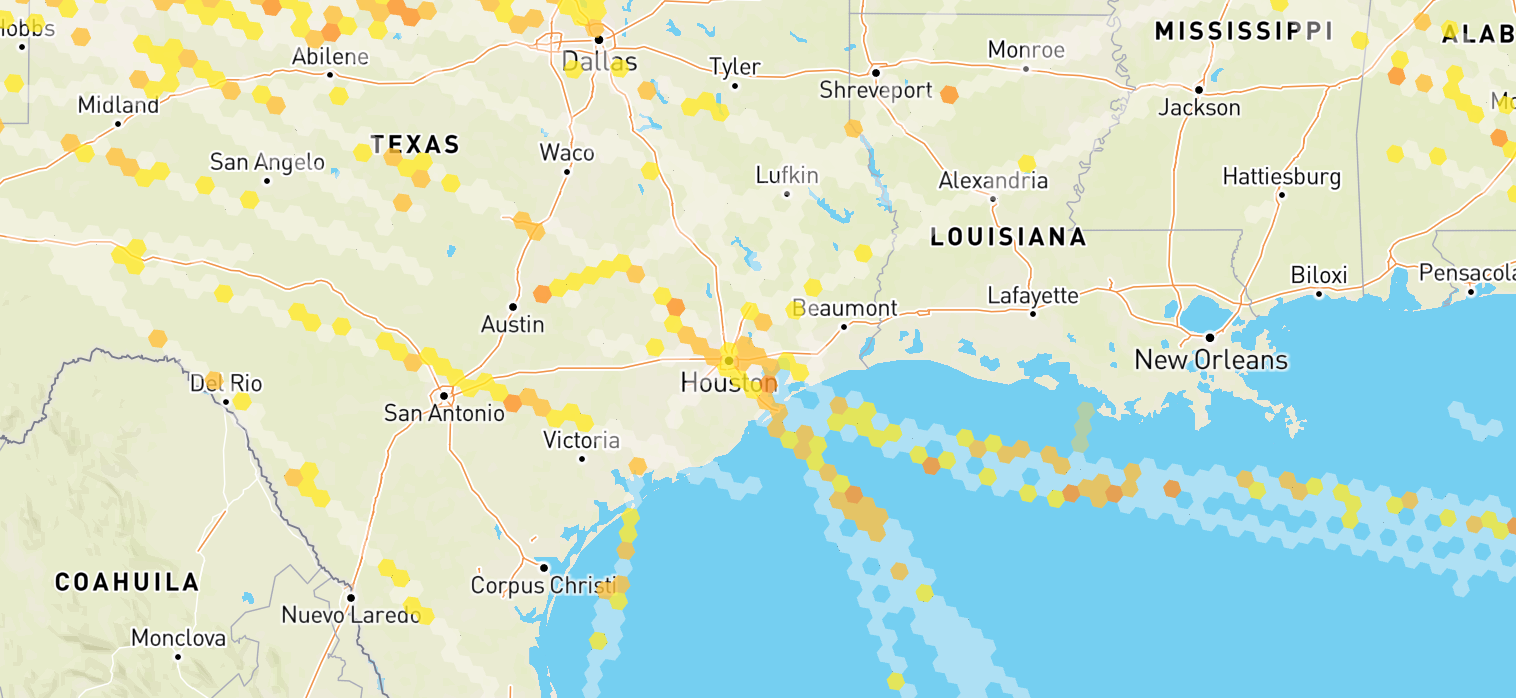
Startup and Initialization
Upon instantiation, Observations Flow sets up initial configurations and prepares the system for data fetching based on provided map polygon and other settings. It immediately subscribes to internal events to handle periodic updates and user-triggered changes.
To create Observations Flow call createObservationsFlow factory method from sdk object.
See example:
// Initialize SDK
const sdk = await createSkyPathSDK(...);

// Create Observations Flow (only when OneLayer is not enabled)
const observationsFlow = sdk.IS_ONELAYER_ENABLED ? null : sdk.createObservationsFlow();
Observations does not use a feature flag — it is available to all authenticated users. Do not run Observations and OneLayer at the same time; use OneLayer when sdk.IS_ONELAYER_ENABLED is true, otherwise use Observations. See Feature flags for details.
The createObservationsFlow() method doesn't take any arguments, all configuration for the flow is provided with updateConfig() method.
Lifecycle Management
- Start: Allocates resources, setting up intervals and listeners for data updates;
- Update: Triggers an update of the data, fetching new data for relevant areas and settings;
- Stop: Temporarily stops all operations, keeps resources, and pauses updates / fetches;
- Terminate: Completely stops all operations, releases resources, and removes all listeners, effectively shutting down the flow;
The diagram shows the intended order of calls. The flow does not enforce it and does not throw on other orders. After terminate(), create a new flow instead of calling start() again.
Data Retrieval Process
Under the hood, observations flow abstracts the complexity for communication with SkyPath platform API in efficient way handling necessary data transformations, mappings and access management:
- Data fetching: The data for the whole world map is being fetched based on the map polygon and settings set. It handles concurrent loading and ensures that only relevant data is fetched and in performant way;
- Data Merging: New data may be merged with already loaded areas of a world map, appending it to the stored values to reduce network load and computation time;
- Data enrichment: Once new data is available on the back-end side, the old data is being enriched with the fresh data;
Data update process is triggered automatically by the flow, but can also be triggered manually by the user by calling updateConfig() method.
Automatic updates are triggered periodically every 1 minute.
Once data update is triggered and successfully completed, the flow emits data update event, which can be listened to by the user to update the UI or perform any other necessary actions. This can be done by subscribing to the event using onData method that takes a callback function as an argument and returns ObservationsData object for current and previous data:
observationsFlow.onData((data, previousData) => {
  // You may get data in different formats
  const rawReportsData = data.toRawObject();                   // Raw reports
  const hexagonsArray = data.toHexagonsArray();                // Hexagons array
  const geoJsonFeatureCollection = data.toFeatureCollection(); // GeoJSON Feature Collection

  // ...use the data to update the UI...
})
If an error occurs during the update process, the flow emits an error event, which can be listened to by the user to handle the error. This can be done by subscribing to the event using onError method that takes a callback function as an argument and returns an Error object:
observationsFlow.onError((error) => {
  // Handle the error
})
Tracking the processing status of the flow can be done by subscribing to the onIsProcessingChange event. This event is emitted when the flow starts or stops processing data. The event returns a boolean value indicating the processing status:
observationsFlow.onIsProcessingChange((isProcessing) => {
  // Handle the processing status
})
onData, onError and onIsProcessingChange throw a ValidationError if the callback is not a function.
Configuration
To update the flow with new settings, call updateConfig method:
observationsFlow.updateConfig(config)
The updateConfig(config: Config) method takes the following arguments where the polygon is a custom area on a world map and settings are the configuration for the flow:
| Property | Description | Type | Default |
|---|---|---|---|
| polygon | Map viewport rectangle or a route corridor polygon | Polygon | null |
| aircraftCategory | Aircraft category | AircraftCategory | "C60" |
| isCorridorMode | Flag to indicate if the polygon is a route corridor or not | boolean | false |
| historyHours | Number of hours to load historical data | 0.5 | 1 | 2 | 3 | 4 (number) | 2 |
| maxAltitude | Maximum altitude to load data for | Altitude | 52 |
| minAltitude | Minimum altitude to load data for | Altitude | 0 |
| minSeverity | Minimum severity level to load data from | Severity | 0 |
Please note, that all properties are optional. If you provide partial configuration, for missing properties previous or default values will be used.
Example: If you first set aircraftCategory to C10 and then update the configuration without providing aircraftCategory, the value will remain C10.
undefined values are ignored and will not trigger any changes.
While the flow is running, the update starts 0.5 seconds after the last updateConfig() call, so several quick calls lead to one update.
Invalid values, including null, are not applied. The flow reports them as a FlowError: to the onError callback if one is set, otherwise updateConfig() throws it.
Requirements
We apply some requirements to the polygon size to ensure the performance of the flow. Depending if the polygon is a corridor or not, the flow will handle the polygon differently.
Default Mode
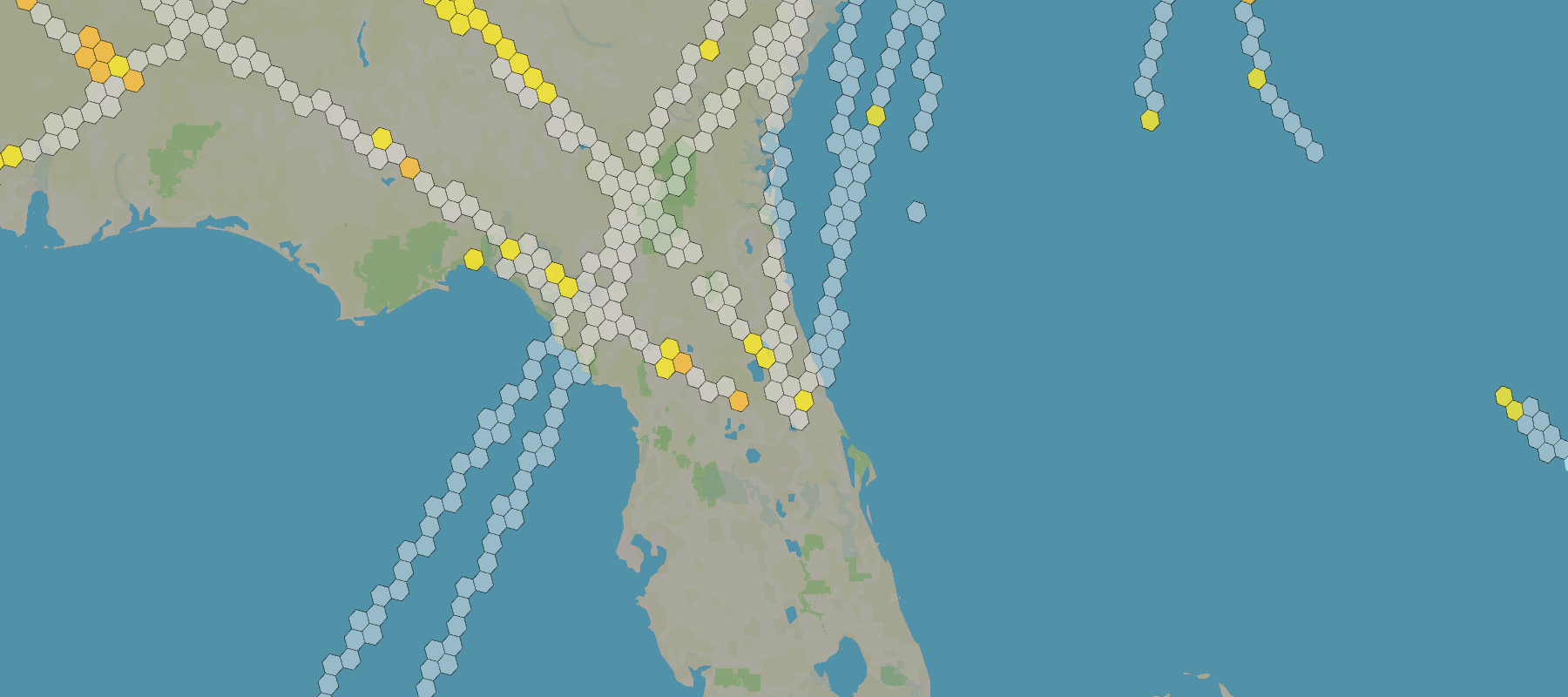
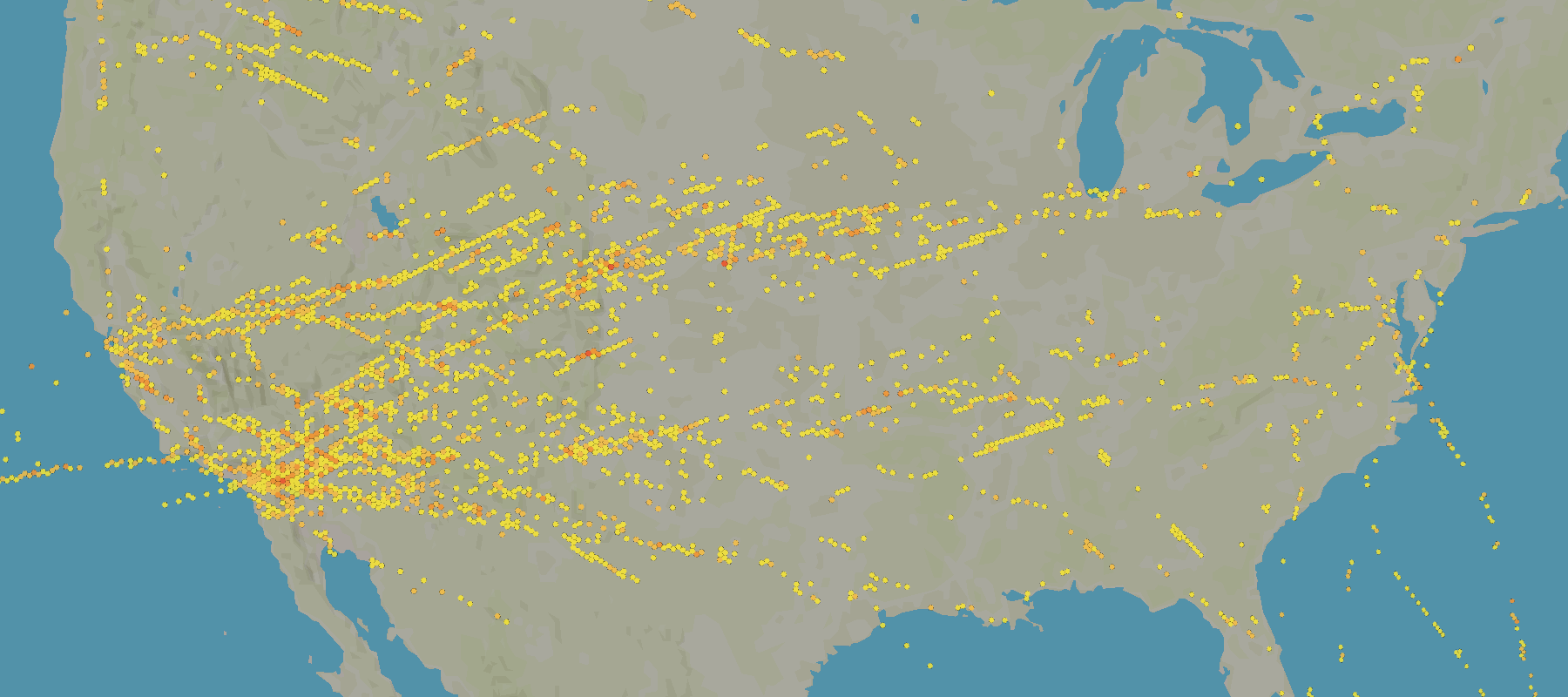
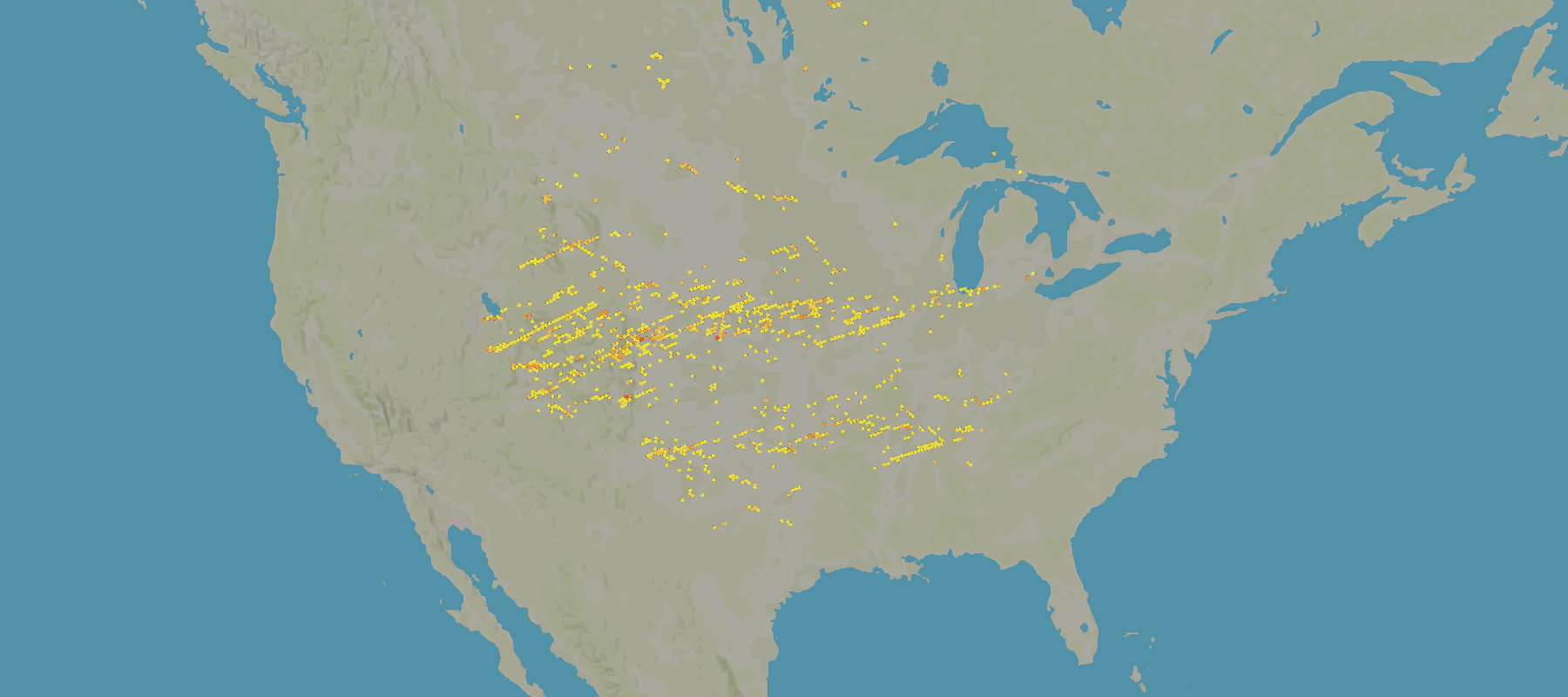
When dealing with default mode, meaning isCorridorMode is false, flow relates polygon to 1 of 3 sizes:
- Small: smaller than continental U.S.
- Medium: from small to large
- Large: larger than the 2x continental U.S.
For each size, the flow applies different handling strategies to ensure the performance of the flow.
- Small
- Medium
- Large
- All severity data is loaded.
- Full polygon is loaded.
- Smooth severity data is excluded.
- Full polygon is loaded.
- Smooth severity data is excluded
- Only middle area is loaded.
Corridor Mode
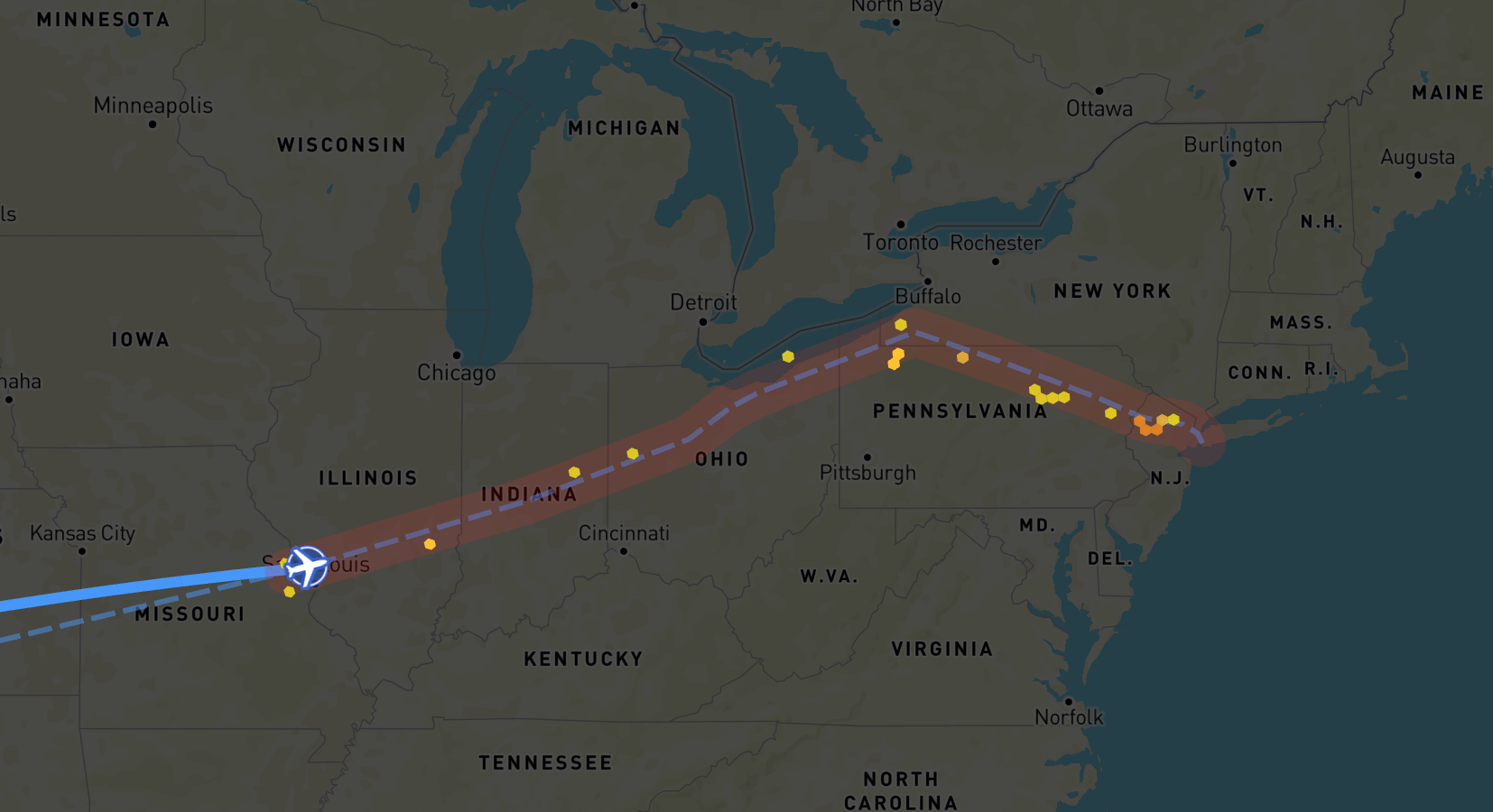
When dealing with corridor mode, meaning isCorridorMode is true, there are only one limitation - the polygon size should be less than 2,500,000 nautical miles, otherwise, the flow will not load the data and will emit an error.
- Smooth severity data is excluded.
- Corridor polygon is loaded.
Examples
Basic usage
// Import the SDK
import createSkyPathSDK from "@skypath-io/web-sdk";

// Init with your credentials
const sdk = await createSkyPathSDK(...);

// Create Observations Flow
const observationsFlow = sdk.createObservationsFlow()

// Subscribe to the data update event
observationsFlow.onData((data) => {
  // Use the data to update the UI
})

// Subscribe to the error event
observationsFlow.onError((error) => {
  // Handle the error
})

// Start the flow when needed
observationsFlow.start()

// Later in the code update the configuration
observationsFlow.updateConfig({
  polygon: [
    [ -64.816, -18.751 ],
    [ -64.816, -28.452 ],
    [ -51.672, -28.452 ],
    [ -51.672, -18.751 ],
    [ -64.816, -18.751 ]
  ],
  aircraftCategory: "C60",
})

// Later in the code terminate the flow when jobs are done
observationsFlow.terminate()
Advanced usage
For advanced examples check the React Demo Application.